Image previews let you see pictures shared in a conversation. You can save an image attachment to your computer and open the saved file.
Show Image Previews (Pro)
Automatic image previews are available in PhonePad Chat Pro.
1.Open Preferences from the File menu.
2.Under Chat Behavior, select Show image previews automatically.
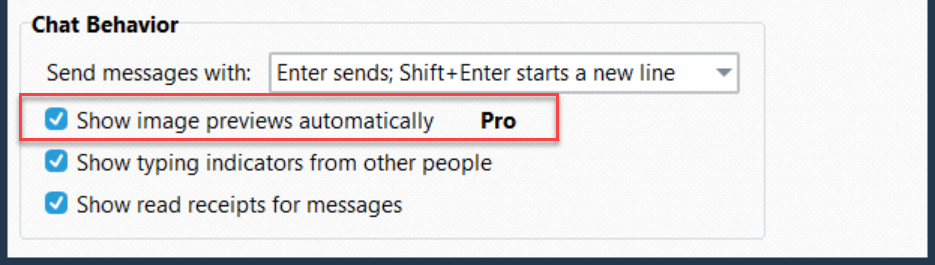
3.Click OK.
Image attachments are displayed with a preview in the conversation, together with the file name and size.
Save an Image
1.Select the conversation containing the image.
2.Click the image attachment. The Save attachment dialog opens.
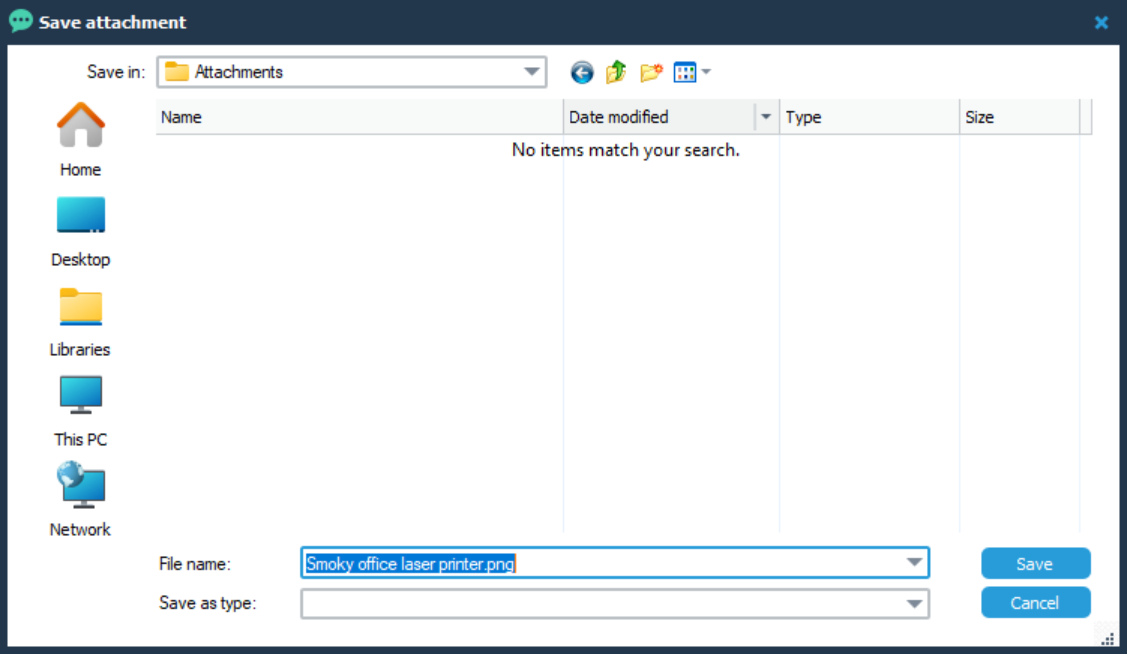
3.Choose the folder where you want to save the image.
4.Keep the suggested File name, or enter a different name.
5.Click Save.
Click Cancel if you do not want to save the image.
Open the Saved Image
In Windows File Explorer, open the folder where you saved the image and double-click the file. Windows opens it in the application associated with that image type.
Related Topics
Sending Attachments
Viewing and Saving Attachments
Preferences
Activating Pro