Send files to other participants in a conversation. You can send an attachment on its own or include a message with it.
Select a File
1.Open the conversation you want to send the file to.
2.Click the paperclip button on the message editor toolbar.
3.In Select files to attach, locate and select the file you want to send.
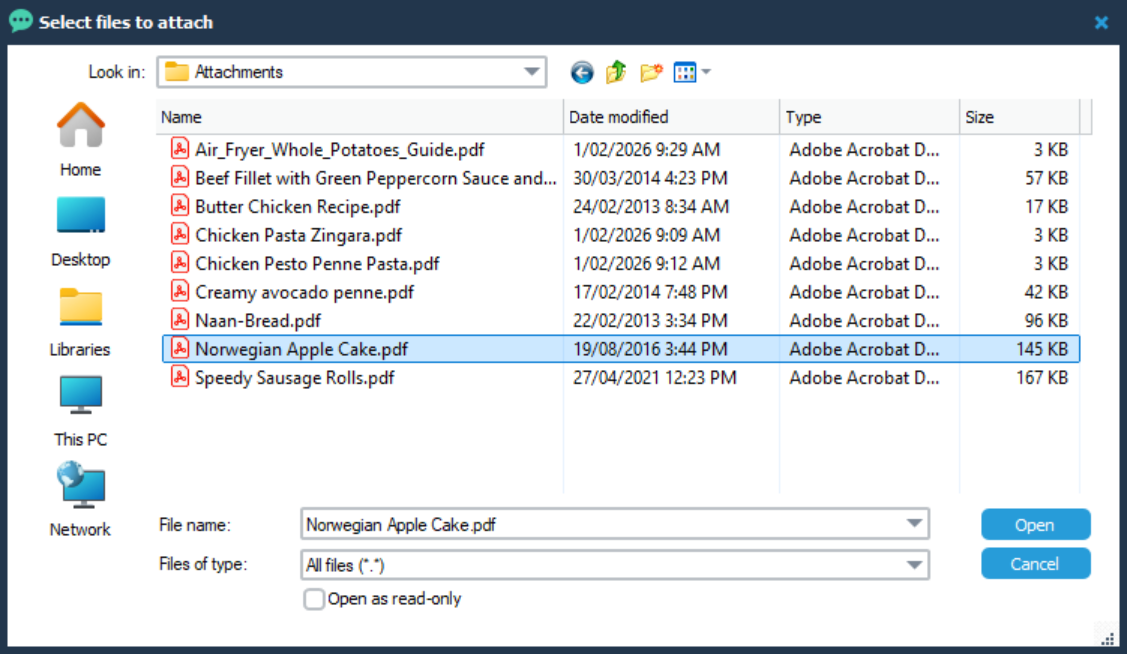
4.Click Open.
The file appears in the Attachments list above the message editor. The list shows the filename and file size.
Drag and Drop a File
You can also add an attachment by dragging a file from File Explorer and dropping it into the message editor.
Send the Attachment
1.Check the Attachments list to make sure you have selected the correct file.
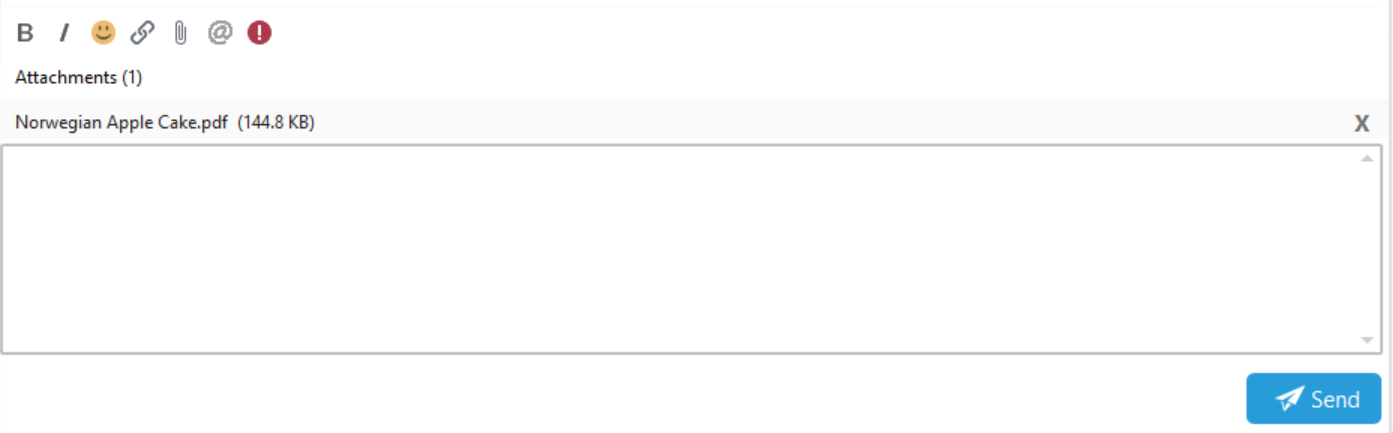
2.If you want to include a message, type it in the message editor.
3.Click Send.
The attachment appears in the conversation with its filename and file size.
Remove an Attachment Before Sending
Click the X beside a file in the Attachments list to remove it from the message before sending.