PhonePad Chat uses desktop notifications and unread count badges to help you keep track of new messages.
Desktop Notifications
When desktop notifications are enabled, an alert shows who sent the message and a preview of its contents. An attachment alert shows the file name, for example, Sent an attachment: Recipes.zip.
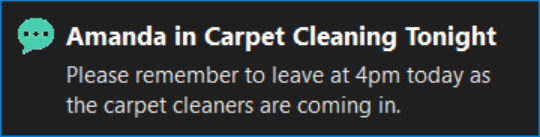
Click a notification to bring PhonePad Chat to the front and open the relevant conversation.
Unread Count Badges
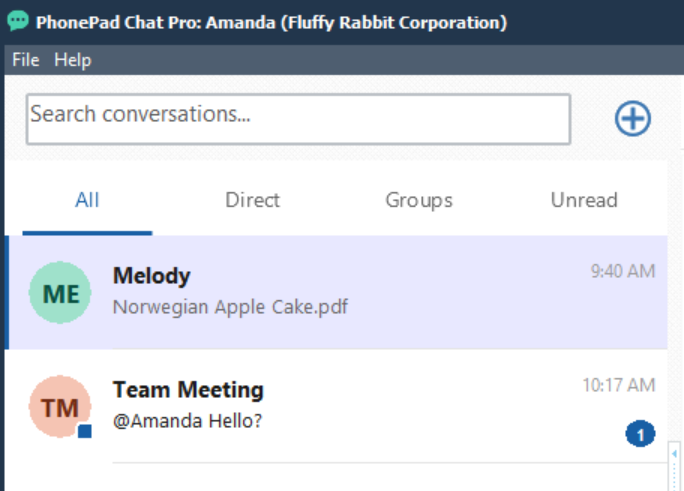
A blue numbered badge beside a conversation shows how many messages are unread. For example, a badge showing 1 means the conversation has one unread message.
Select the conversation to view its messages. Opening the conversation clears its unread count badge.
Find Unread Conversations
1.Click Unread above the conversation list.
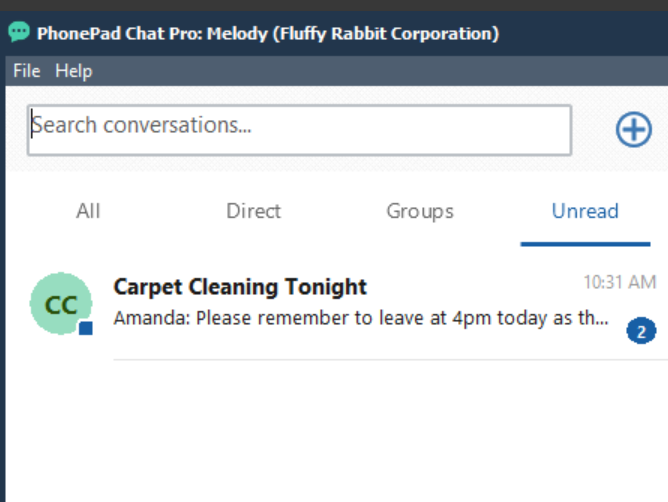
2.Select a conversation to read its messages.
3.Click All to return to the full conversation list.
Choose Your Notification Settings
1.Select File > Preferences.
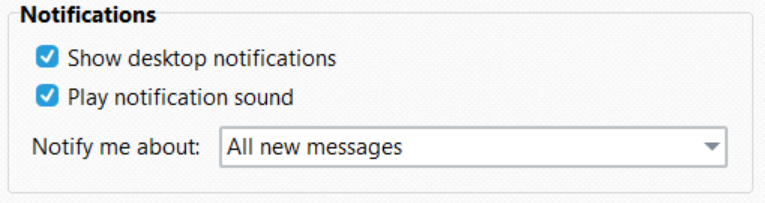
2.Under Notifications, select Show desktop notifications to enable alerts. Select Play notification sound if you also want an audible alert.
3.Under Notify me about, choose which messages should trigger a notification.
4.Click OK to save your settings.
You can choose All new messages, Mentions and urgent messages only, or Urgent messages only.
Related Topics
Preferences
Mentioning People
Sending Urgent Messages