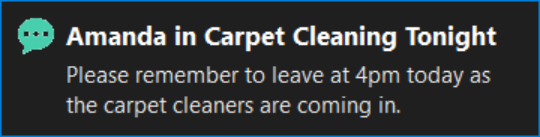
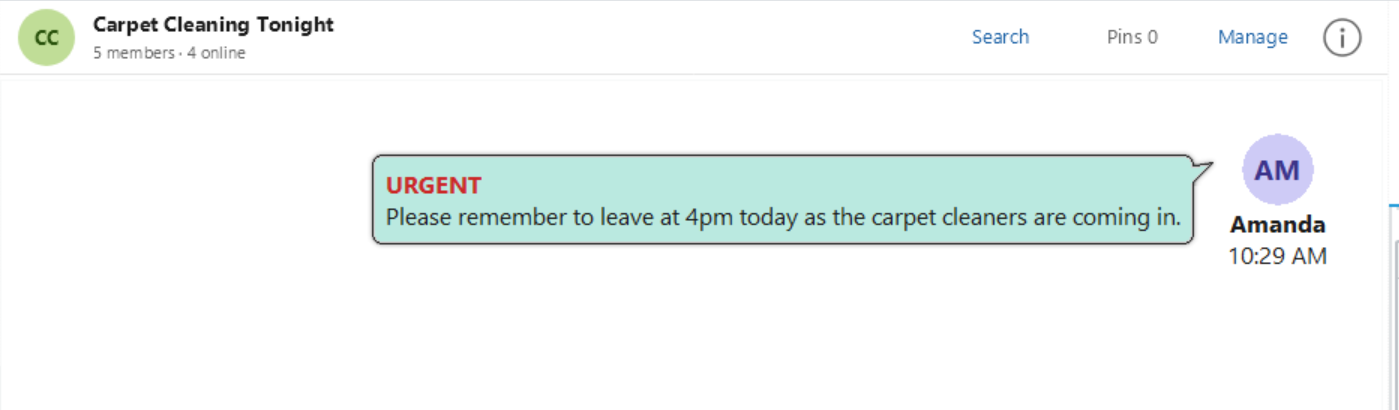
Mark a message as urgent when it needs prompt attention. An urgent message displays a red URGENT heading above its text in the conversation.
Send an Urgent Message
1.Open the conversation you want to send the message to.
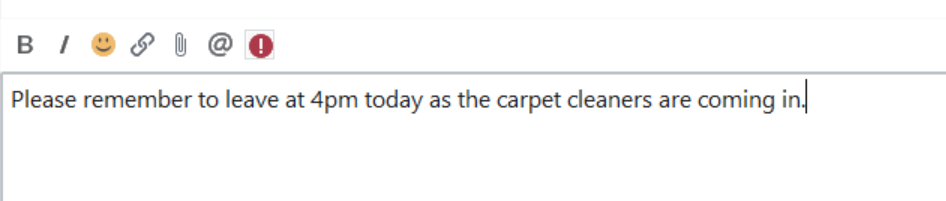
2.Type your message in the message editor.
3.Click the red exclamation mark (!) button on the message editor toolbar to turn urgency on.
4.Click Send.
The message appears in the conversation with the red URGENT heading.
Turn Urgency Off Before Sending
If you decide the message does not need to be urgent, click the exclamation mark (!) button again before sending. The message will be sent as a normal message.
Notifications
Recipients receive the same style of notification as for a normal message. The urgent heading is shown on the message in the conversation.