Open PhonePad Chat from the Home toolbar in PhonePad to chat with other users.
Open PhonePad Chat
1.Log in to PhonePad.
2.Select the Home tab.

3.Click the PhonePad Chat button—the blue speech bubble with three white dots, immediately to the left of the calendar button.
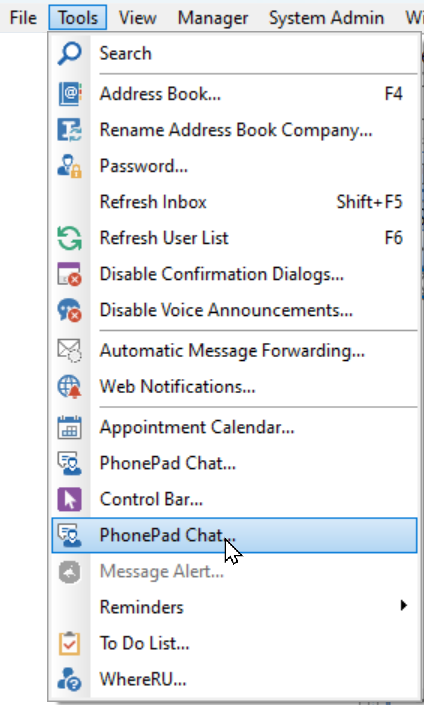
Alternatively, select Tools > PhonePad Chat... from the PhonePad menu.
PhonePad Chat opens using your PhonePad login details. You do not need to enter a separate username or password.
Check the Connection
The connection status indicator is in the bottom-left corner of the PhonePad Chat window. A green indicator shows that Chat is connected to the PhonePad Chat Server.
If the connection is lost, PhonePad Chat automatically attempts to reconnect. See Connection Status and Reconnecting for more information.
Start Chatting
Select an existing conversation from the conversation list, or click the plus (+) button to start a new conversation.
See Starting a Conversation and Sending a Message for step-by-step instructions.