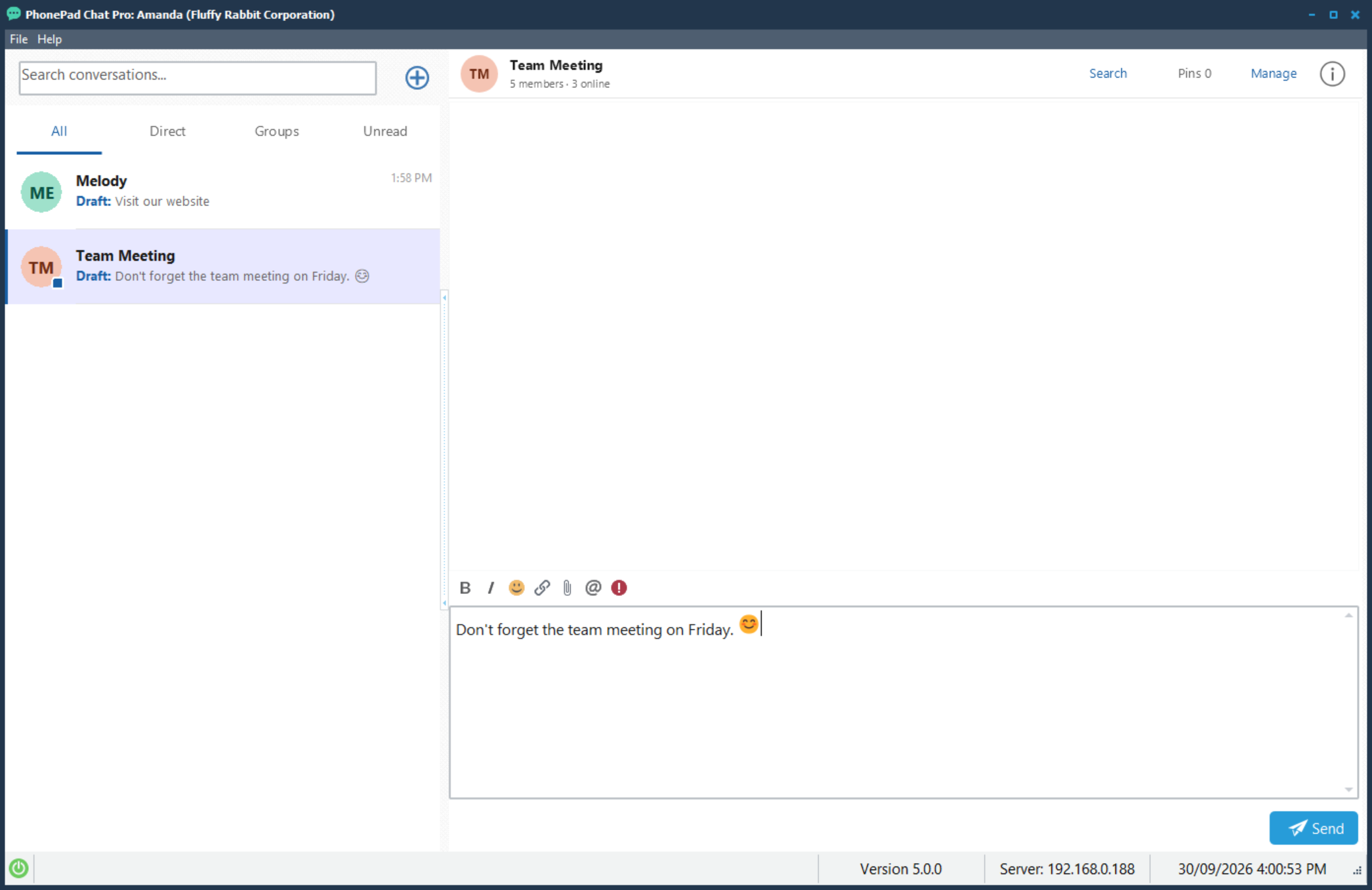
The PhonePad Chat main window contains your conversation list on the left, the selected conversation on the right, and a message editor below it.
Conversation List
The conversation list displays your chats. Click a conversation to view its messages.
Use the tabs above the list to choose which conversations are displayed:
•All — All conversations.
•Direct — Conversations with individual users.
•Groups — Group conversations.
•Unread — Conversations containing unread messages.
To find a conversation, enter text in the Search conversations box.
Click the plus (+) button beside the search box to start a new conversation.
If you have an unfinished message in a conversation, its entry displays Draft followed by a preview of the text.
Conversation Header
The header above the messages identifies the selected conversation. For a direct conversation, it displays the other user's name and online status.
The following controls appear on the right:
•Search — Search for messages in the selected conversation.
•Pins — View pinned messages. The number indicates how many messages are pinned.
•Information (i) — View information about the conversation.
Message History
The message history displays messages in the selected conversation, together with sender names and times.
Scroll through this area to review earlier messages. Read indicators may also appear beside messages you have sent.
Message Editor
Use the message editor at the bottom of the window to compose your message.
The toolbar above the editor provides these options:
Button |
Purpose |
B |
Apply bold formatting. |
I |
Apply italic formatting. |
Smiley face |
Insert an emoji. |
Link |
Add a hyperlink. |
Paperclip |
Attach a file. |
@ |
Mention a user. |
Exclamation mark |
Mark the message as urgent. |
Some features require PhonePad Chat Pro.
Attachments
Files added to your message appear above the message editor. Each entry displays the filename and file size.
To remove an attachment before sending the message, click the X beside it.
Sending a Message
When your message is ready, click Send in the bottom-right corner of the window.
Status Bar
The status bar along the bottom of the window displays connection information, the program version, the server address, and the date and time.
See Connection Problems if PhonePad Chat cannot connect to the server.