Add emojis to your messages to express a feeling or communicate a quick response. The emoji picker includes faces, hand gestures, and symbols such as a check mark, telephone, calendar, and warning sign.
Insert an Emoji
1.Click in the message editor where you want the emoji to appear.
2.Click the smiley face button on the toolbar above the message editor. The emoji picker opens.
3.Click the emoji you want to insert.
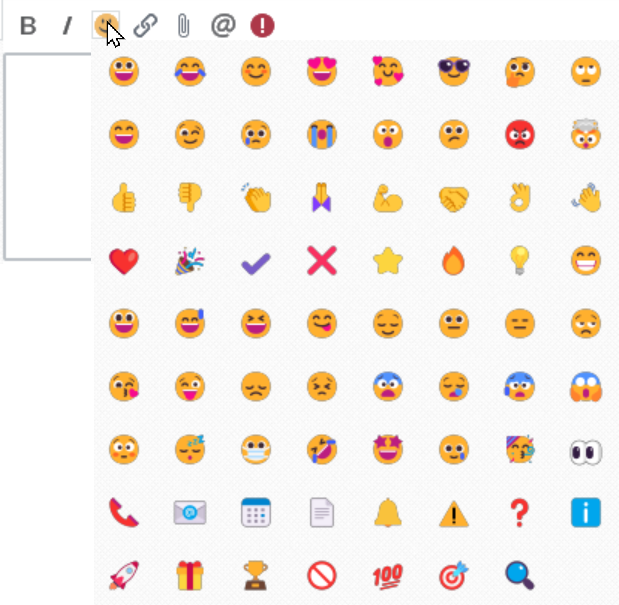
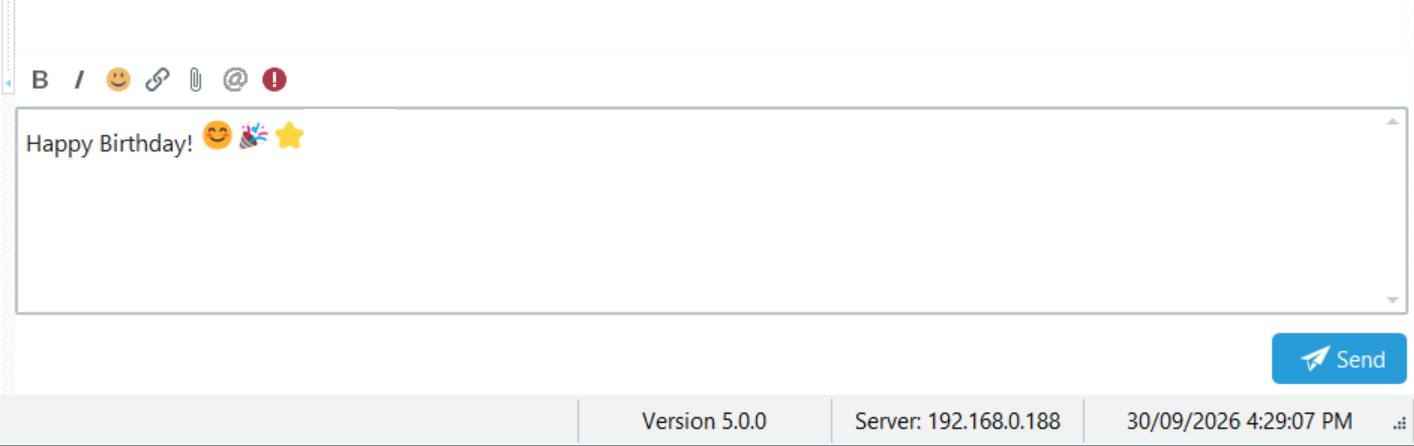
You can combine emojis with text in the same message. Repeat these steps to add more emojis.
Send Your Message
When your message is ready, click Send or use your selected send shortcut. By default, press Enter to send. If you have changed the setting in Preferences, press Ctrl+Enter instead.
Emojis and Reactions
An emoji inserted with the toolbar becomes part of your message. A reaction is attached to an existing message to provide a quick response. See Reacting to Messages for instructions on using reactions.