Reply to a specific message to make it clear which part of the conversation you are responding to. You can reply to text messages, emojis, and attachments.
Reply to a Message
1.In the selected conversation, find the message you want to reply to.
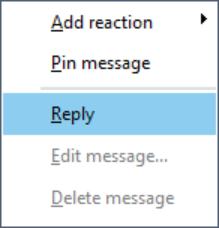
2.Right-click the message and select Reply.
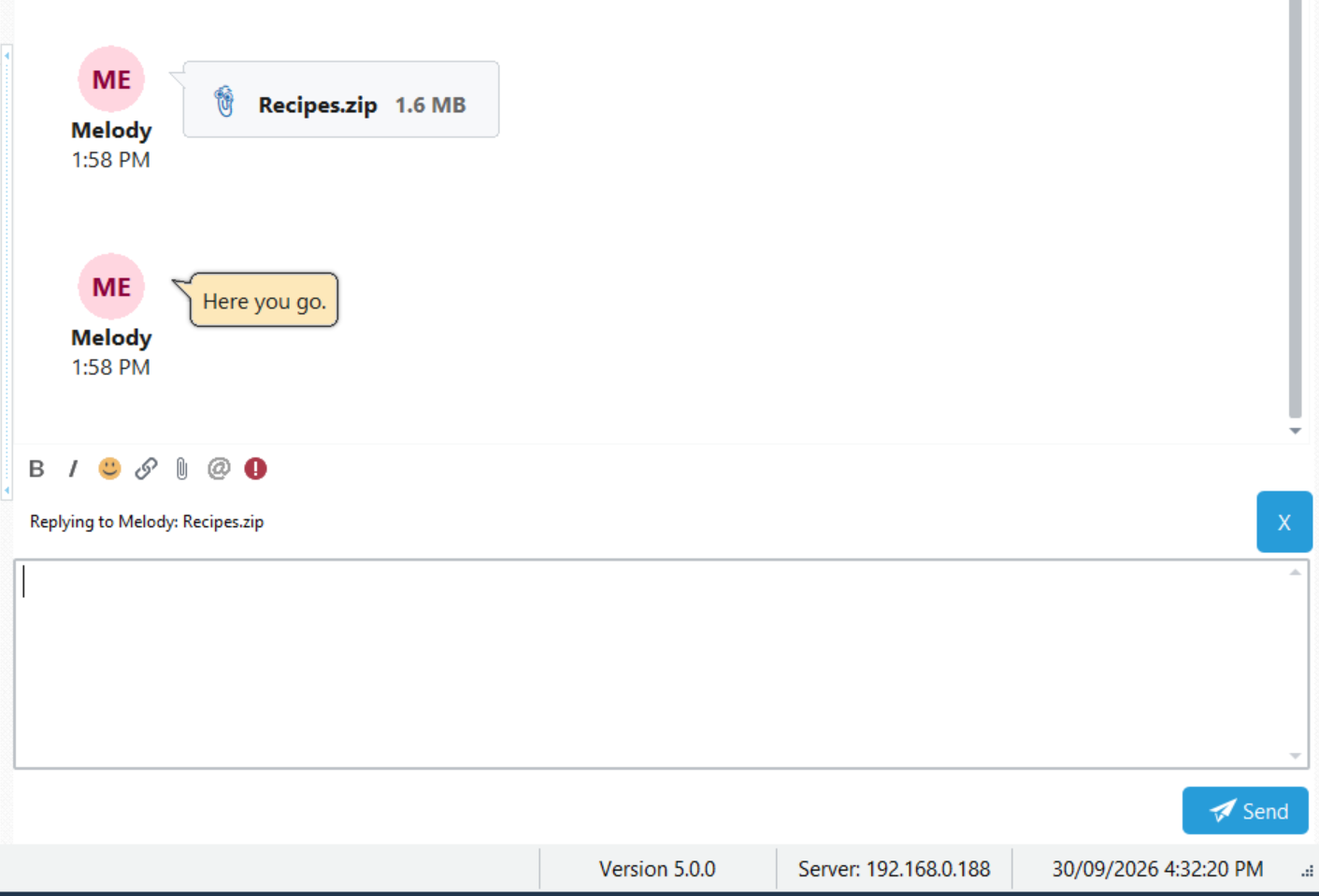
3.A Replying to bar appears above the message editor. Check that it identifies the message you want to reply to.
4.Type your response in the message editor. You can use formatting, insert emojis, or add attachments as you would with any other message.
5.Click Send, or use your selected send shortcut. By default, press Enter. If you have selected the alternative keyboard setting in Preferences, press Ctrl+Enter.
The Replying To Bar
The bar above the editor shows the original sender and a preview of the message you are replying to. For an attachment, it shows the filename.
For example, Replying to Melody: Recipes.zip indicates that your response is a reply to the Recipes.zip attachment sent by Melody.
Cancel a Reply
Before sending, click the X at the right-hand end of the Replying to bar to cancel replying to that message.