Search the selected conversation to find earlier messages containing a word or phrase. Matching attachment filenames can also appear in the results.
Search a Within a Conversation (Pro)
1.Select the conversation you want to search.
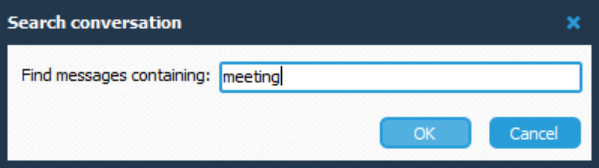
2.Click Search in the conversation header. The Search conversation dialog opens.
3.Enter a word or phrase in Find messages containing.
4.Click OK to display the matching results.
Click Cancel to close the dialog without running the search.
Search Results
The results appear in a list below the conversation header. Each result shows the date, time, sender, and a preview of the matching message. Longer previews may be shortened to fit the list.
Click a result to scroll to the matching message in the conversation.
For example, searching for meeting in the Team Meeting conversation can find messages about the meeting time and agenda, as well as an attachment named Team Meeting Agenda.pdf.
Find a Conversation
The Search conversations box above the conversation list on the left provides a separate way to find a conversation.
1.Click in the Search conversations box.
2.Enter text to filter the conversation list. For example, entering meet can display the Team Meeting conversation.
3.Click the conversation to open it.
Clear the text from the search box to remove the filter.
Which Search Should I Use
Use Search conversations on the left to find a conversation. Use Search in the conversation header to find messages within the selected conversation.