Pin important messages and attachments so you can find them easily in a conversation. For example, pin a meeting agenda or information you need to refer to regularly.
Pin a Message
1.Find the message or attachment in the selected conversation.
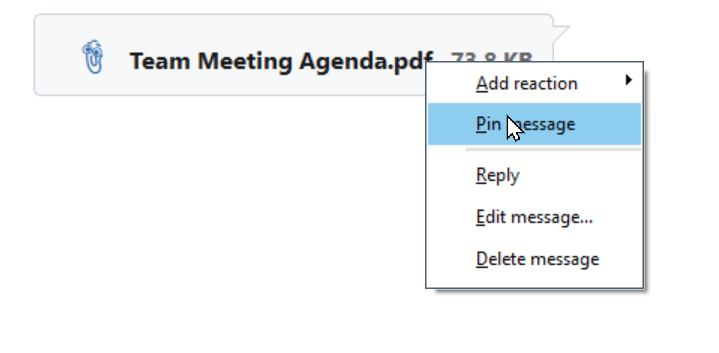
2.Right-click it and select Pin message.
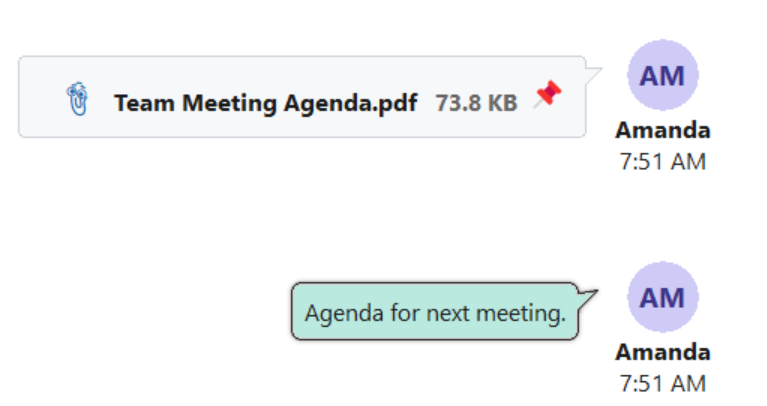
A pin icon appears on the message or attachment. The Pins count in the conversation header updates to show the number of pinned messages.
View Pinned Messages
1.Select the conversation you want to view.
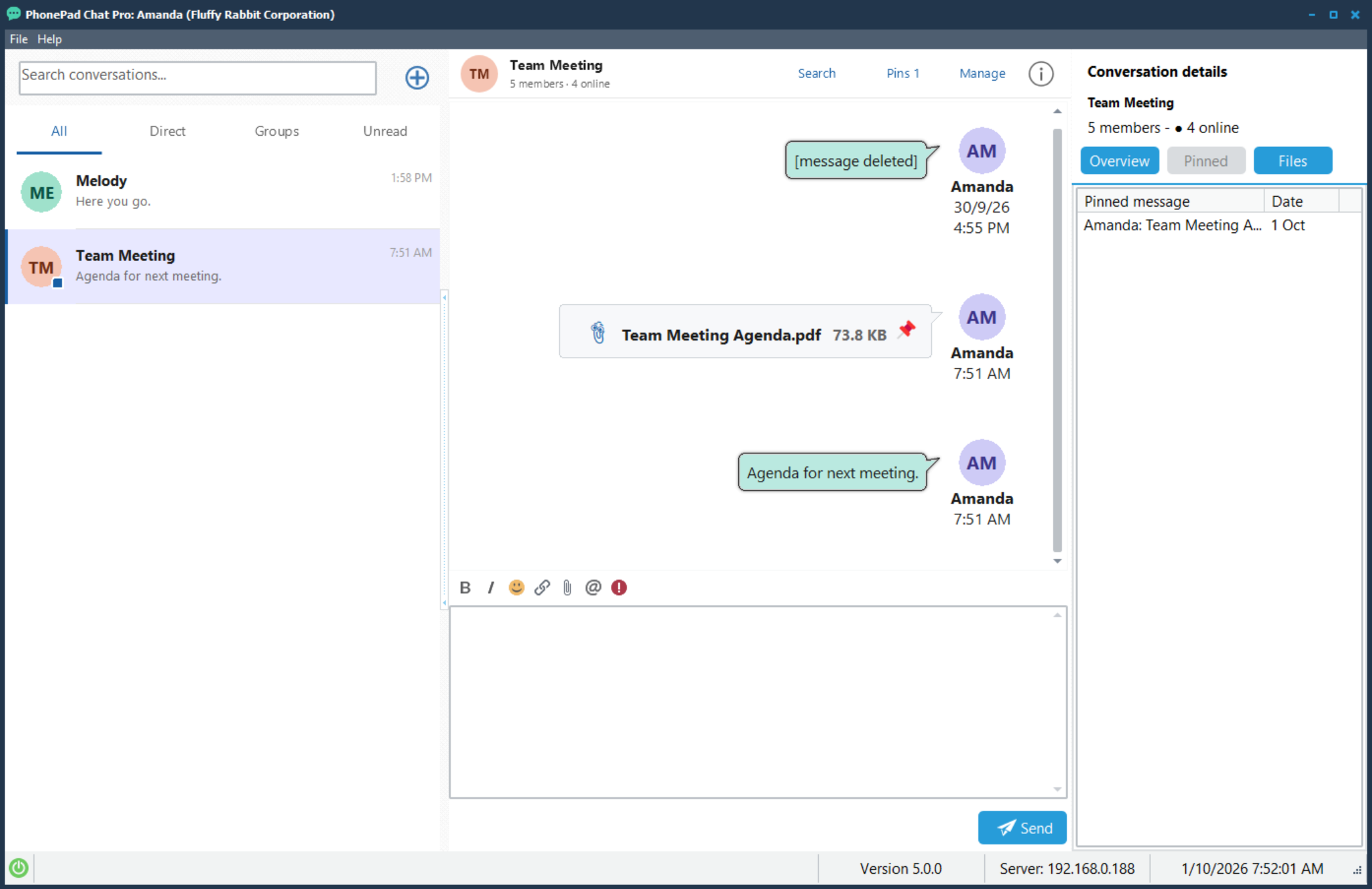
2.Click Pins in the conversation header.
The Conversation details panel opens with the Pinned view selected. The list shows a preview of each pinned message and its date.
You can also open Conversation details using the Information (i) button and select Pinned.
Pin an Attachment
To keep an important file easy to find, right-click its attachment bubble and select Pin message. A pin icon appears beside the file details, and the attachment is included in the pinned list.
Unpin a Message
1.Find the pinned message or attachment in the conversation.
2.Right-click it and select Unpin message.
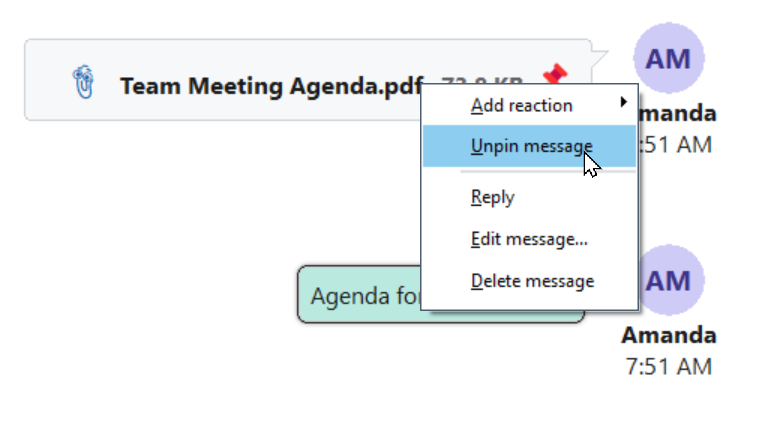
The pin is removed and the message is removed from the pinned list. Unpinning does not delete the message or attachment.