Use online status to see whether someone is online, and typing indicators to see when someone is composing a message in your conversation.
View Status in a One to One Conversation
Select a conversation with one other person. Their status appears beneath their name at the top of the conversation: Online in green or Offline in gray. A matching status dot also appears on their avatar.

View Group Member Status
1.Select the group conversation.
2.Click Manage in the conversation header to open Group Information.
3.Check the status beneath each member’s name.
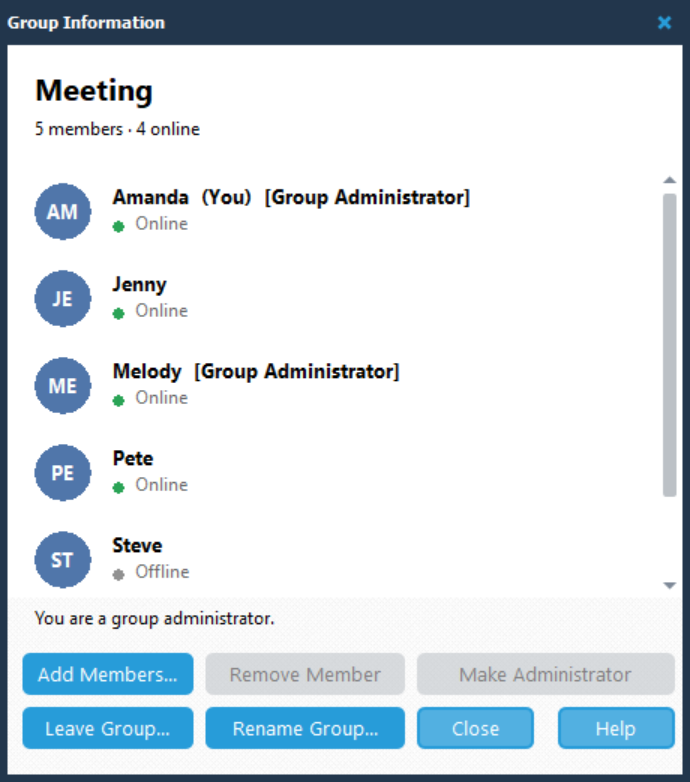
Online appears with a green indicator. Offline appears with a gray indicator.
The group conversation header also shows the total number of members and how many are online. For example, 5 members · 4 online.

Click Close when you have finished viewing Group Information.
Typing Indicators
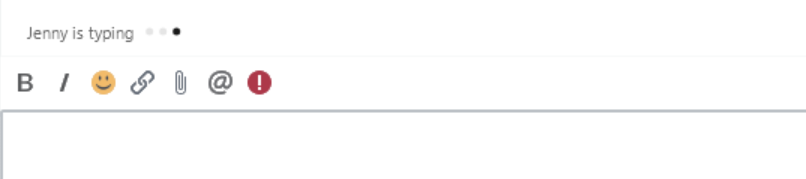
When someone is typing in the conversation, an indicator appears above the message editor toolbar. It identifies the person, for example Jenny is typing, followed by dots.
The indicator tells you that a message is being composed. The message itself appears in the conversation after the person sends it.
Show or Hide Typing Indicators
1.Open Preferences.
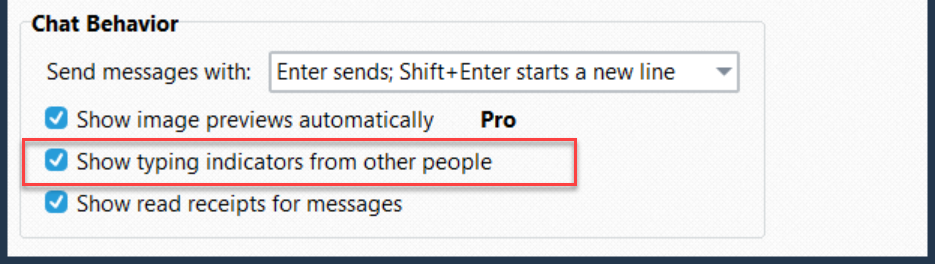
2.Under Chat Behavior, select Show typing indicators from other people to display typing indicators, or clear it to hide them.
3.Click OK to save your preference.