PhonePad Chat keeps unfinished messages as drafts, so you can switch conversations and return to finish a message later. Each conversation can have its own draft.
Leave a Message as a Draft
1.Select a conversation and begin typing in the message editor.
2.Select another conversation without sending the message.
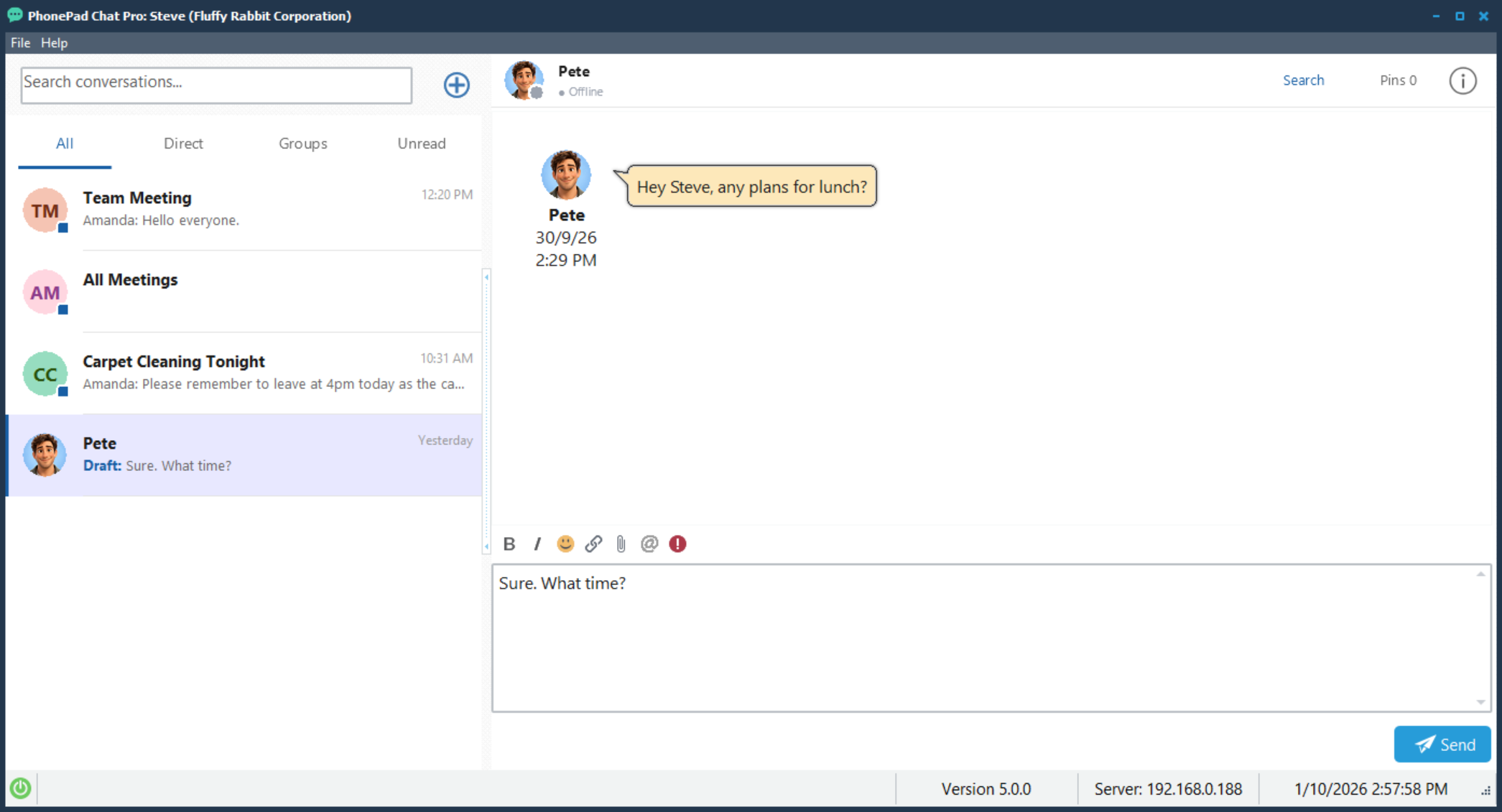
Your unfinished message is kept for the original conversation. You do not need to click a Save button.
Find a Draft
A conversation with an unfinished message shows Draft: in the conversation list, followed by a preview of the draft text.
For example, if you type “Sure. What time?” in a conversation with Pete, the list shows Draft: Sure. What time? until you send or clear the message.
Continue and Send a Draft
1.Select the conversation marked Draft:.
2.Your unfinished message appears in the editor. Continue typing or make any changes.
3.Click Send when the message is ready.
After the message is sent, the draft is cleared and the Draft: label is removed.
Discard a Text Draft
1.Select the conversation containing the draft.
2.Click in the message editor, press Ctrl+A to select all the text, and press Delete.
When the editor is empty and no attachments remain, the Draft: label is removed.