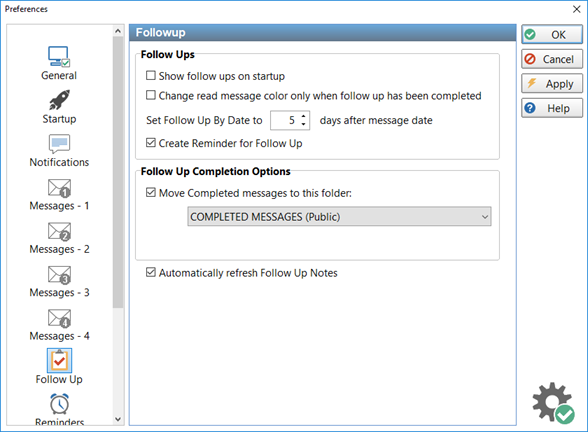
The Follow Up page contains options for customizing message Follow Up settings.
Follow Ups
Show follow ups on startup
When checked, the Inbox will be filtered to show messages that require follow up. This overrides the Inbox Message Filtering option.
Change read message color when follow up has been completed
Normally, the color of a message will change in the Inbox message list when the message has been read. If this option is checked, the color will only change when the message has been followed up.
Set Follow Up By Date to x days after message date
Sets the default Follow Up By Date to the specified number of days after the current date, when the Follow Up By check box is checked.
Create Reminder for Follow Up
When checked, a reminder will be automatically created when you mark a message for follow up. If you then unmark the message for follow up, or complete the follow up, the reminder will be automatically deleted.
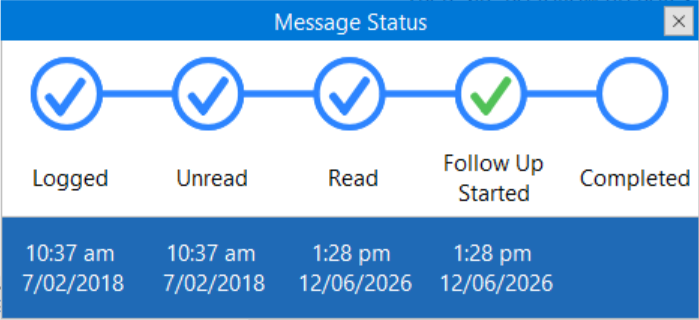
Show Message Status when selecting a message
When checked, you can display a message status showing the current state of a message without having to go into it or the Follow Up Notes.
Simply hold down the <shift> key and click on the message.
Follow Up Completion Options
Move Completed messages to this folder
When checked, when a Follow Up is marked as Completed it will be moved to the specified folder.
Automatically refresh Follow Up Notes
When checked, the Follow Up Notes will be automatically refreshed. Otherwise, you may occasionally need to refresh it manually.